> ## Documentation Index
> Fetch the complete documentation index at: https://polyai-mintlify-7055a538.mintlify.site/llms.txt
> Use this file to discover all available pages before exploring further.
# CSAT surveys
> Measure customer satisfaction with in-call voice CSAT surveys and webchat CSAT surveys.
Use CSAT surveys to measure whether callers are satisfied with how the agent handled their request. Don't just rely on proxy metrics (containment, duration) that won't tell you how the caller actually felt.
 CSAT surveys collect feedback from customers at the end of their conversation. The agent asks customers to rate their experience on a 1–5 scale, and responses are tracked in your analytics dashboards and exported data.
PolyAI currently supports voice and webchat CSAT surveys. Voice CSAT is an in-call survey where the agent asks customers to rate their experience before ending the conversation; webchat CSAT shows a similar rating prompt in the chat widget.
## Configuring voice CSAT
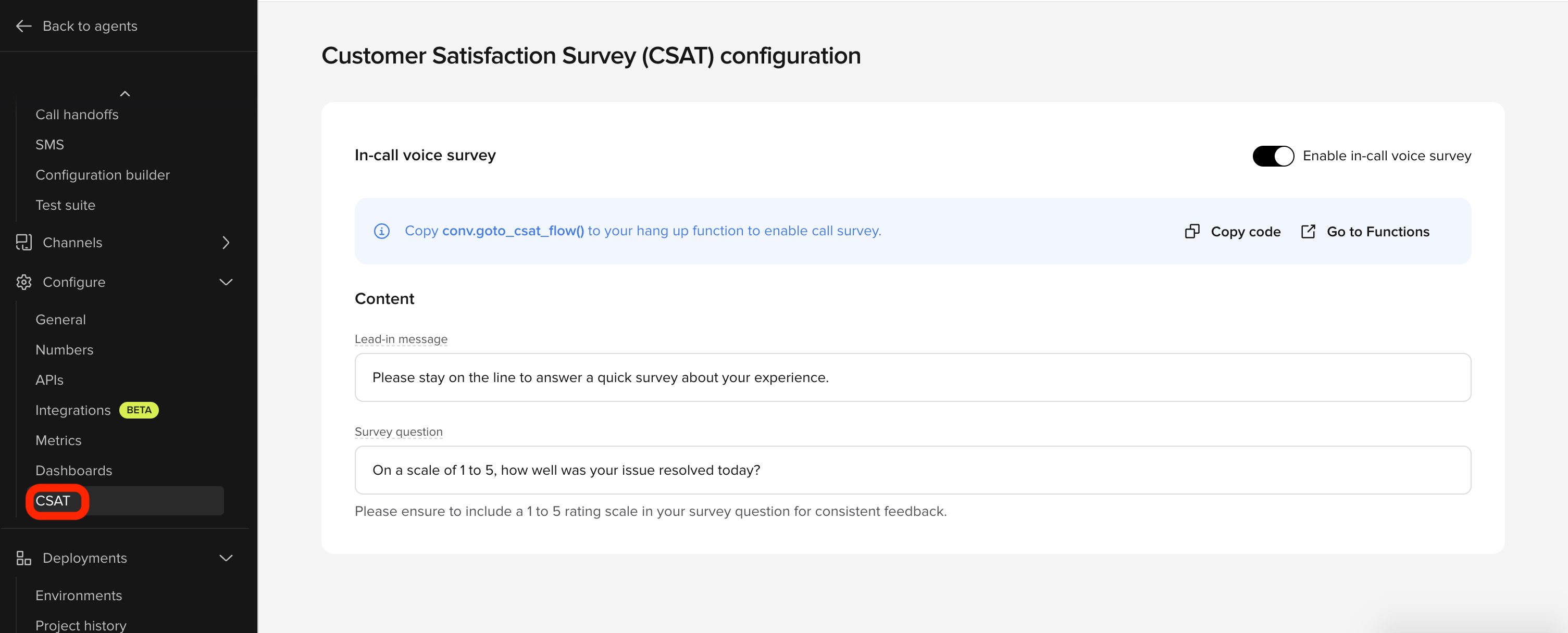
Voice CSAT is configured from the CSAT settings under the **Analyze** section of the sidebar.
### Step 1: Enable the survey
At the top of the CSAT settings page, toggle **Enable in-call voice survey** to on. This activates the CSAT feature for your project. Until enabled, no surveys run.
### Step 2: Connect to your end function
Add `conv.goto_csat_flow()` to your end function in **Tools**. This instructs the agent to route users into the survey flow before ending the conversation.
Here is the complete function definition:
```python theme={"theme":{"light":"github-light","dark":"github-dark"}}
def goodbye_and_hang_up(conv: Conversation):
conv.goto_csat_flow()
```
CSAT surveys collect feedback from customers at the end of their conversation. The agent asks customers to rate their experience on a 1–5 scale, and responses are tracked in your analytics dashboards and exported data.
PolyAI currently supports voice and webchat CSAT surveys. Voice CSAT is an in-call survey where the agent asks customers to rate their experience before ending the conversation; webchat CSAT shows a similar rating prompt in the chat widget.
## Configuring voice CSAT
Voice CSAT is configured from the CSAT settings under the **Analyze** section of the sidebar.
### Step 1: Enable the survey
At the top of the CSAT settings page, toggle **Enable in-call voice survey** to on. This activates the CSAT feature for your project. Until enabled, no surveys run.
### Step 2: Connect to your end function
Add `conv.goto_csat_flow()` to your end function in **Tools**. This instructs the agent to route users into the survey flow before ending the conversation.
Here is the complete function definition:
```python theme={"theme":{"light":"github-light","dark":"github-dark"}}
def goodbye_and_hang_up(conv: Conversation):
conv.goto_csat_flow()
```
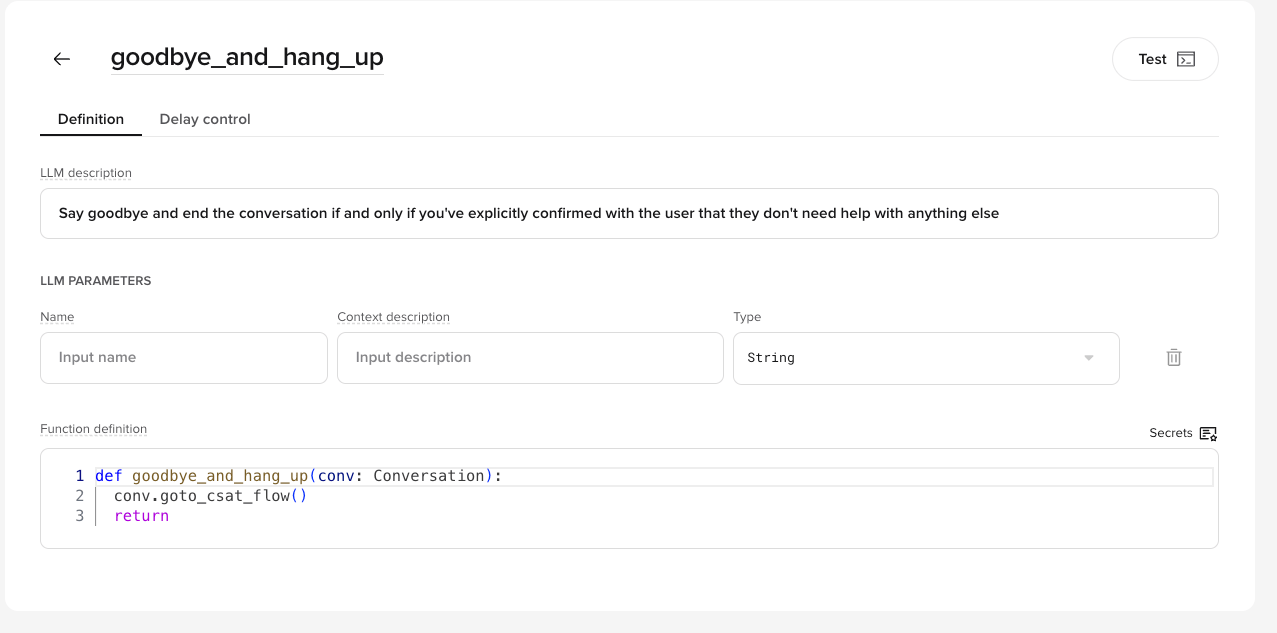 Required — without this, the survey never triggers, even with the toggle on. End the function with `conv.goto_csat_flow()` and return nothing.
If you want a custom final message before the survey, set the utterance in `conv.state.csat_output_args` before calling `conv.goto_csat_flow()`:
```python theme={"theme":{"light":"github-light","dark":"github-dark"}}
def goodbye_and_hang_up(conv: Conversation):
conv.state.csat_output_args = {"utterance": "Custom final thank you message"}
conv.goto_csat_flow()
```
Without this, the agent uses the default lead-in message configured in your CSAT settings.
### Step 3: Define survey content
Configure the two text fields in the **Content** section:
What the agent says before asking the question. Keep it short and clear to prevent hang-ups.
**Example:** "Please stay on the line to answer a quick survey about your experience."
The actual rating question. You must include a 1–5 scale in the wording – the system does not infer a scale.
**Example:** "On a scale of 1 to 5, how well was your issue resolved today?"
Once configured, every time your end function executes, the user routes into the CSAT flow before the conversation ends.
## Configuring webchat CSAT
Webchat CSAT shows a star-rating survey (1–5, with a skip option) in the chat widget at the end of a conversation. It's configured from the **CSAT survey** card on your webchat channel's settings. Unlike voice, no end-function wiring is required — once enabled with title and question text configured, the survey shows automatically at the end of a conversation.
### Step 1: Enable the survey
Toggle **Enable webchat survey** at the top of the CSAT survey card. This activates the CSAT feature for your project's webchat channel. Until enabled, no surveys run.
### Step 2: Define survey content
Configure the survey text for each of your agent's languages — one section per language, with the default language required and additional languages optional:
The heading shown at the top of the survey. Maximum 60 characters.
**Default:** "Rate your chat"
The rating question shown to the customer, answered on a 1–5 star scale.
Maximum 200 characters.
**Default:** "How would you rate your experience?"
## How CSAT works
### Voice
1. **Customer completes conversation** - The agent finishes helping the customer
2. **Lead-in message** - Agent introduces the survey
3. **Survey question** - Agent asks the 1–5 rating question
4. **Customer responds** - Customer provides a rating
5. **Data collection** - Rating is stored and appears in your dashboards
### Webchat
1. **Customer ends the conversation** - The conversation reaches its end
2. **Survey appears** - A star-rating modal opens in the widget, showing your configured title and question
3. **Customer responds** - The customer picks a 1–5 star rating, or skips the survey. If they don't respond, the survey is automatically skipped
4. **Data collection** - The rating (or skip) is stored and appears in your dashboards
## CSAT best practices
**Tips for effective surveys:**
* **Keep it short** - Customers are more likely to respond to brief surveys
* **Be clear about the scale** - Explicitly state what 1 and 5 mean in your survey question
* **Natural language** - Write messages that sound conversational, not robotic
* **Test thoroughly** - Try different phrasings in sandbox before deploying
## Viewing CSAT data
### Agent Studio dashboards
CSAT scores appear in your analytics dashboards within Agent Studio:
1. Navigate to **Analyze > Enterprise dashboards**
2. Select the **CSAT** dashboard
3. View metrics including:
* Average CSAT score
* Score distribution (1-5)
* CSAT trends over time
* Response rate
* CSAT correlation with containment and resolution rates
### Conversation-level data
Individual CSAT scores are also visible in conversation records:
1. Go to **Analyze > Conversations** and select the **Voice** scope
2. Filter the conversations table to show only conversations with CSAT responses
3. Select a conversation
4. View CSAT metrics in the conversation details
### Conversations API
CSAT scores are included as structured fields in [Conversations API](/api-reference/conversations) responses. You can export this data for:
* Integration with your existing analytics or reporting tools
* Building custom dashboards
* Ingesting into client systems
### Wren
You can query CSAT data by asking Wren for custom analysis and reporting. Wren has access to all CSAT metrics and can generate custom reports.
### Tracked metrics
The following metrics are automatically tracked for CSAT surveys:
#### Voice CSAT metrics
* `CSAT_OFFERED` - Whether the survey was offered (boolean)
* `CSAT_ACCEPTED` - Whether the customer accepted the survey (boolean)
* `CSAT_DENIED` - Whether the customer declined the survey (boolean)
* `CSAT_SCORE` - Customer rating (numeric 1-5)
* `CSAT_FREE_FEEDBACK` - Verbatim customer feedback (string, if collected)
* `CSAT_COMPLETED` - Whether the survey was completed (boolean)
#### Webchat CSAT metrics
* `CSAT_OFFERED` - Whether the survey was shown (boolean)
* `CSAT_ACCEPTED` - Whether the customer rated the survey (boolean)
* `CSAT_DENIED` - Whether the customer skipped the survey (boolean)
* `CSAT_SCORE` - Customer rating (numeric 1-5)
* `CSAT_COMPLETED` - Whether the survey was completed (boolean)
Webchat CSAT is a star-rating survey only – `CSAT_FREE_FEEDBACK` does not apply.
These metrics are attached to the original conversation record and can be used for analysis and reporting.
## Rating scale
The standard CSAT scale is 1-5:
| Rating | Interpretation |
| ------ | ----------------- |
| 5 | Very satisfied |
| 4 | Satisfied |
| 3 | Neutral |
| 2 | Dissatisfied |
| 1 | Very dissatisfied |
### CSAT calculation methods
CSAT scores can be calculated in different ways depending on your reporting needs:
**Standard average**
Simple average of all CSAT scores (e.g., 4.06 out of 5.0). This is what PolyAI dashboards report by default.
**Net Promoter style (client-side)**
Some organizations apply a Net Promoter Score-style calculation to their exported CSAT data. This is not calculated by PolyAI – you would apply it to your own data exports:
* CSAT Score = (Promoters - Detractors) / Total responses
* Promoters: Scores of 4-5
* Detractors: Scores of 1-2
* Neutral: Score of 3 (not included in calculation)
Example: If 70% of customers rate 4-5 and 10% rate 1-2, the CSAT score would be 60%.
## Troubleshooting
* Check that `conv.goto_csat_flow()` is called in your end function
* Ensure the end function is being executed (check conversation logs)
* Simplify your survey messages
* Make the scale clearer (explicitly state what 1 and 5 mean)
* Consider the timing - surveys work best after successful resolutions
* Allow up to 15 minutes for data to appear
* Verify the conversation completed successfully
* Check that the customer actually provided a rating
## Limitations
* The rating scale is fixed at 1-5
* Only one CSAT survey can be triggered per conversation
* Survey must be triggered from the end function (voice only)
For custom survey requirements or multi-question surveys, contact your PolyAI representative to discuss advanced options.
## Related pages
Add conv.goto\_csat\_flow() to trigger surveys at conversation end.
View CSAT scores alongside containment and other key metrics.
Ask Wren to query CSAT data and surface satisfaction trends.
Required — without this, the survey never triggers, even with the toggle on. End the function with `conv.goto_csat_flow()` and return nothing.
If you want a custom final message before the survey, set the utterance in `conv.state.csat_output_args` before calling `conv.goto_csat_flow()`:
```python theme={"theme":{"light":"github-light","dark":"github-dark"}}
def goodbye_and_hang_up(conv: Conversation):
conv.state.csat_output_args = {"utterance": "Custom final thank you message"}
conv.goto_csat_flow()
```
Without this, the agent uses the default lead-in message configured in your CSAT settings.
### Step 3: Define survey content
Configure the two text fields in the **Content** section:
What the agent says before asking the question. Keep it short and clear to prevent hang-ups.
**Example:** "Please stay on the line to answer a quick survey about your experience."
The actual rating question. You must include a 1–5 scale in the wording – the system does not infer a scale.
**Example:** "On a scale of 1 to 5, how well was your issue resolved today?"
Once configured, every time your end function executes, the user routes into the CSAT flow before the conversation ends.
## Configuring webchat CSAT
Webchat CSAT shows a star-rating survey (1–5, with a skip option) in the chat widget at the end of a conversation. It's configured from the **CSAT survey** card on your webchat channel's settings. Unlike voice, no end-function wiring is required — once enabled with title and question text configured, the survey shows automatically at the end of a conversation.
### Step 1: Enable the survey
Toggle **Enable webchat survey** at the top of the CSAT survey card. This activates the CSAT feature for your project's webchat channel. Until enabled, no surveys run.
### Step 2: Define survey content
Configure the survey text for each of your agent's languages — one section per language, with the default language required and additional languages optional:
The heading shown at the top of the survey. Maximum 60 characters.
**Default:** "Rate your chat"
The rating question shown to the customer, answered on a 1–5 star scale.
Maximum 200 characters.
**Default:** "How would you rate your experience?"
## How CSAT works
### Voice
1. **Customer completes conversation** - The agent finishes helping the customer
2. **Lead-in message** - Agent introduces the survey
3. **Survey question** - Agent asks the 1–5 rating question
4. **Customer responds** - Customer provides a rating
5. **Data collection** - Rating is stored and appears in your dashboards
### Webchat
1. **Customer ends the conversation** - The conversation reaches its end
2. **Survey appears** - A star-rating modal opens in the widget, showing your configured title and question
3. **Customer responds** - The customer picks a 1–5 star rating, or skips the survey. If they don't respond, the survey is automatically skipped
4. **Data collection** - The rating (or skip) is stored and appears in your dashboards
## CSAT best practices
**Tips for effective surveys:**
* **Keep it short** - Customers are more likely to respond to brief surveys
* **Be clear about the scale** - Explicitly state what 1 and 5 mean in your survey question
* **Natural language** - Write messages that sound conversational, not robotic
* **Test thoroughly** - Try different phrasings in sandbox before deploying
## Viewing CSAT data
### Agent Studio dashboards
CSAT scores appear in your analytics dashboards within Agent Studio:
1. Navigate to **Analyze > Enterprise dashboards**
2. Select the **CSAT** dashboard
3. View metrics including:
* Average CSAT score
* Score distribution (1-5)
* CSAT trends over time
* Response rate
* CSAT correlation with containment and resolution rates
### Conversation-level data
Individual CSAT scores are also visible in conversation records:
1. Go to **Analyze > Conversations** and select the **Voice** scope
2. Filter the conversations table to show only conversations with CSAT responses
3. Select a conversation
4. View CSAT metrics in the conversation details
### Conversations API
CSAT scores are included as structured fields in [Conversations API](/api-reference/conversations) responses. You can export this data for:
* Integration with your existing analytics or reporting tools
* Building custom dashboards
* Ingesting into client systems
### Wren
You can query CSAT data by asking Wren for custom analysis and reporting. Wren has access to all CSAT metrics and can generate custom reports.
### Tracked metrics
The following metrics are automatically tracked for CSAT surveys:
#### Voice CSAT metrics
* `CSAT_OFFERED` - Whether the survey was offered (boolean)
* `CSAT_ACCEPTED` - Whether the customer accepted the survey (boolean)
* `CSAT_DENIED` - Whether the customer declined the survey (boolean)
* `CSAT_SCORE` - Customer rating (numeric 1-5)
* `CSAT_FREE_FEEDBACK` - Verbatim customer feedback (string, if collected)
* `CSAT_COMPLETED` - Whether the survey was completed (boolean)
#### Webchat CSAT metrics
* `CSAT_OFFERED` - Whether the survey was shown (boolean)
* `CSAT_ACCEPTED` - Whether the customer rated the survey (boolean)
* `CSAT_DENIED` - Whether the customer skipped the survey (boolean)
* `CSAT_SCORE` - Customer rating (numeric 1-5)
* `CSAT_COMPLETED` - Whether the survey was completed (boolean)
Webchat CSAT is a star-rating survey only – `CSAT_FREE_FEEDBACK` does not apply.
These metrics are attached to the original conversation record and can be used for analysis and reporting.
## Rating scale
The standard CSAT scale is 1-5:
| Rating | Interpretation |
| ------ | ----------------- |
| 5 | Very satisfied |
| 4 | Satisfied |
| 3 | Neutral |
| 2 | Dissatisfied |
| 1 | Very dissatisfied |
### CSAT calculation methods
CSAT scores can be calculated in different ways depending on your reporting needs:
**Standard average**
Simple average of all CSAT scores (e.g., 4.06 out of 5.0). This is what PolyAI dashboards report by default.
**Net Promoter style (client-side)**
Some organizations apply a Net Promoter Score-style calculation to their exported CSAT data. This is not calculated by PolyAI – you would apply it to your own data exports:
* CSAT Score = (Promoters - Detractors) / Total responses
* Promoters: Scores of 4-5
* Detractors: Scores of 1-2
* Neutral: Score of 3 (not included in calculation)
Example: If 70% of customers rate 4-5 and 10% rate 1-2, the CSAT score would be 60%.
## Troubleshooting
* Check that `conv.goto_csat_flow()` is called in your end function
* Ensure the end function is being executed (check conversation logs)
* Simplify your survey messages
* Make the scale clearer (explicitly state what 1 and 5 mean)
* Consider the timing - surveys work best after successful resolutions
* Allow up to 15 minutes for data to appear
* Verify the conversation completed successfully
* Check that the customer actually provided a rating
## Limitations
* The rating scale is fixed at 1-5
* Only one CSAT survey can be triggered per conversation
* Survey must be triggered from the end function (voice only)
For custom survey requirements or multi-question surveys, contact your PolyAI representative to discuss advanced options.
## Related pages
Add conv.goto\_csat\_flow() to trigger surveys at conversation end.
View CSAT scores alongside containment and other key metrics.
Ask Wren to query CSAT data and surface satisfaction trends.